Remapping the Logitech R500s on Ubuntu 24.04 with keyd
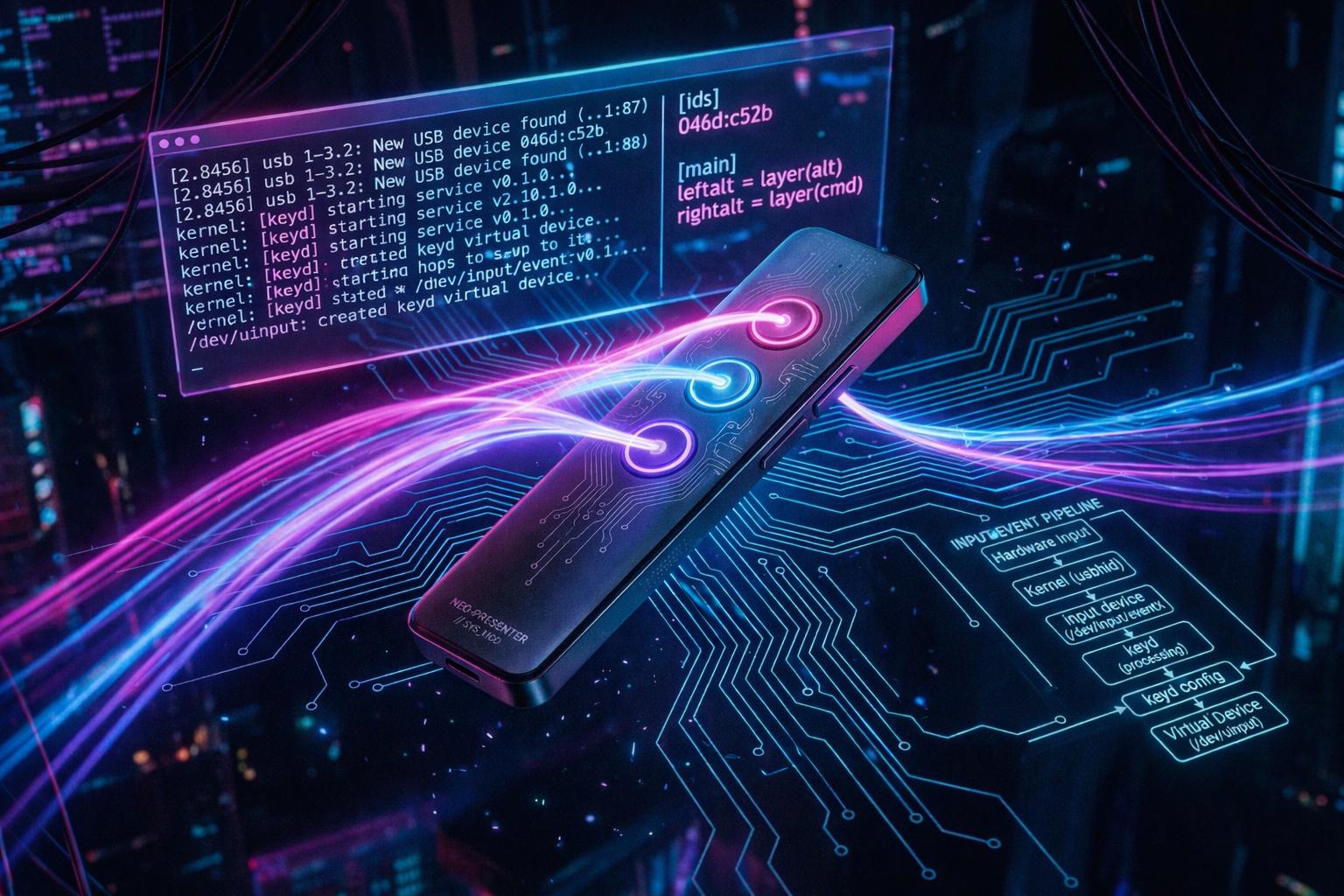
Here’s my latest keyboard:
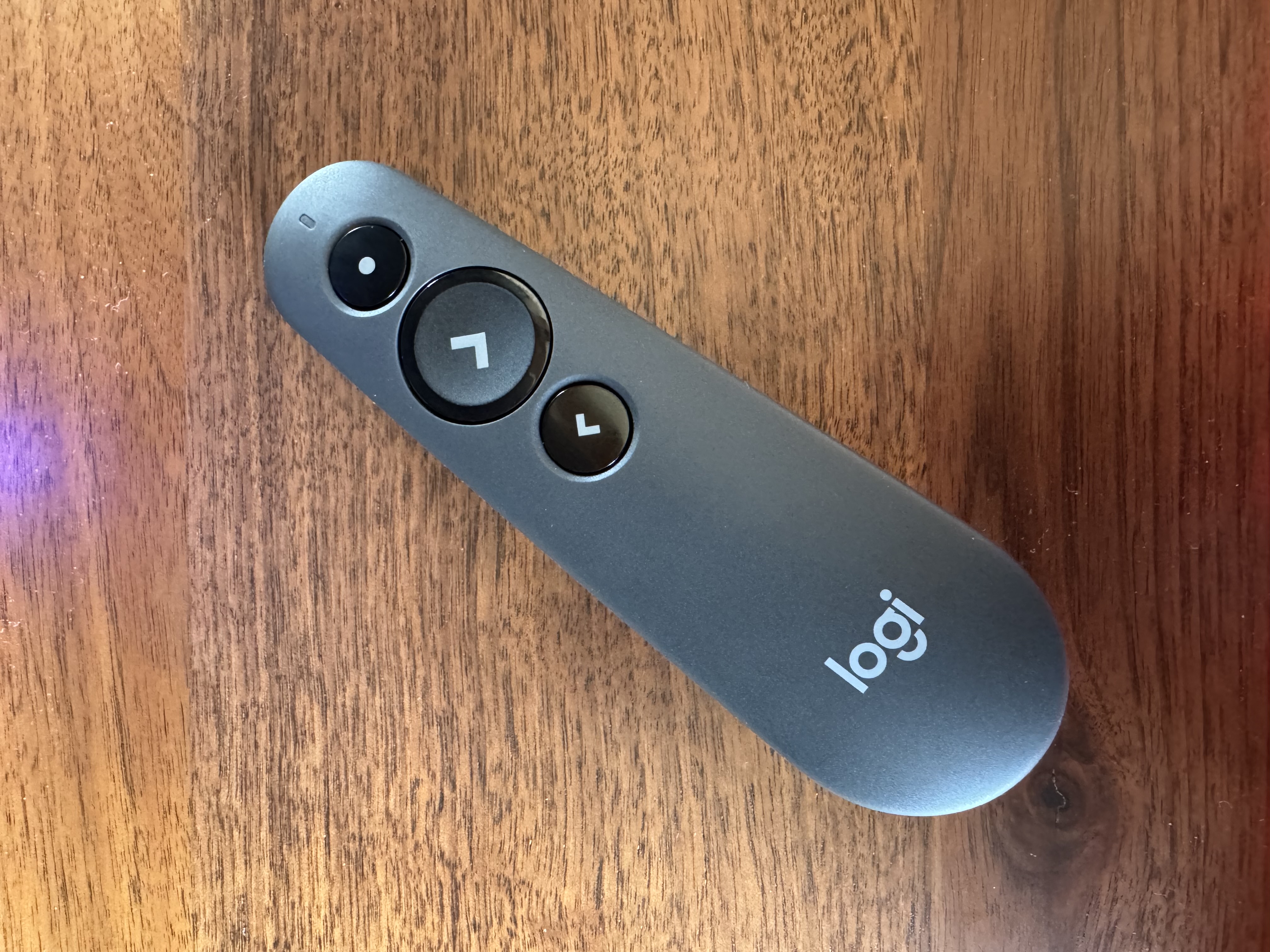
That’s right — I said it — keyboard! This is so very nice when you want to just sit back in your chair and have a long working session with an AI. You just use the big button to talk, and the little button to send what you’ve typed with speech! This effectively replaces your keyboard with this lovely, ergonomic remote. In order to do this, though, you need to do a little bit of config, but it’s dead easy.
Here’s a complete guide to remapping presenter buttons to arbitrary keys or macros, including a technical explanation of how the Linux input stack works and why this approach works the way it does.
The Hardware: Logitech R500s
The R500s is a three-button Bluetooth/USB presenter clicker. Despite having no air mouse or cursor capability, Linux exposes it as two input nodes when connected:
/dev/input/event24—Logi R500 Keyboard(where button presses register)/dev/input/event25—Logi R500 Mouse(exposed due to HID descriptor, largely inactive)
The device vendor/product ID is 046d:b505 (Logitech vendor 046d, R500s product b505).
How the Linux Input Stack Works
Understanding why keyd works requires understanding the path from physical button press to application event.
flowchart TD
    A[Physical button press] --> B[HID report over Bluetooth or USB]
    B --> C[Linux kernel\nhid-generic driver]
    C --> D[evdev event written to\n/dev/input/eventN]
    D --> E[Applications\ndesktop · keyd · evtest · etc.]
When you press the advance button, the R500s sends a HID (Human Interface Device) report over Bluetooth to the kernel. The kernel's hid-generic driver reads it and translates it into a standardized evdev event — a struct that says: device event24, event type EV_KEY, code KEY_RIGHT, value 1 (pressed). That event gets written to /dev/input/event24, which is just a character device file that any program can open and read.
evtest is simply a program that opens that file and prints what it sees. That's its entire job — it's a transparent window into the raw event stream, which makes it the right first tool when you need to know what a device actually sends.
Discovering What Your Device Sends
Before remapping anything, always verify the actual keycodes with evtest. Never assume based on documentation or what worked on a similar device.
sudo evtest /dev/input/event24
Press each physical button and observe the output. For the R500s:
| Physical Button | Keycode Sent |
|---|---|
| Advance (big front button) | KEY_RIGHT (code 106) |
| Back button | verify with evtest |
| Laser button | verify with evtest |
The evtest output also shows the MSC_SCAN value, which is the raw hardware scancode (value 7004f for the advance button). This is the scancode at the HID protocol level, before the kernel translates it to a named keycode.
How keyd Works
keyd is a key remapping daemon — a background service that intercepts input events and rewrites them before they reach your desktop.
When keyd starts, it reads your config files and grabs the matching devices. "Grabbing" means it opens /dev/input/event24 with an exclusive lock. Once grabbed, no other program can read from that file. The events go only to keyd.
keyd then reads those events, applies your remapping rules, and re-emits the translated events through a virtual input device it creates via /dev/uinput. Your desktop sees this virtual device and receives the remapped key. It never knows the R500s was involved.
flowchart TD
    A[Physical button press] --> B["/dev/input/event24\nKEY_RIGHT"]
    B --> C["keyd grabs it exclusively\nnothing else sees it"]
    C --> D["keyd applies rule\nright → pause"]
    D --> E["keyd emits KEY_PAUSE\nvia /dev/uinput virtual device"]
    E --> F[Desktop / applications\nsee KEY_PAUSE]
Because keyd runs as a system service (not a user session process), it starts early in the boot sequence before your desktop loads. This means remaps are active from the moment you log in, regardless of which application is focused.
Installation
keyd is not in the Ubuntu 24.04 default repositories. Build from source:
# Install build dependencies
sudo apt install git make gcc

# Clone the repository
git clone https://github.com/rvaiya/keyd
cd keyd

# Build and install
make
sudo make install

# Enable and start the service
sudo systemctl enable --now keyd
Verify it's running:
sudo systemctl status keyd
The Config File
Config files live in /etc/keyd/ and can be named anything with a .conf extension. keyd loads all files in that directory on startup.
Full config for the R500s
# Logitech R500s Presenter Remote Control
[ids]
046d:b505

# Button mappings
[main]
# Big advance button (front) → Pause key (triggers Handy speech-to-text)
right = pause
# Back button → Enter
left = enter
Critical gotcha: no inline comments. keyd only supports comments on their own line starting with
#. An inline comment like046d:b505 # my devicewill break the config — keyd will try to match the entire string including the comment text as the device ID and silently fail to grab anything.
How each part works
[ids] — tells keyd which physical devices this config applies to. The value 046d:b505 is the USB vendor ID and product ID of the R500s. keyd matches this against every input device on the system. Only the R500s gets grabbed and remapped. Every other device is unaffected, including your keyboard's own right arrow key, which has a different product ID.
[main] — the default layer, meaning "rules that are always active." keyd supports multiple layers (shift layers, function layers, tap-hold behaviors, etc.), but [main] is the base that's always on.
right = pause — the remap rule. Left side is the incoming keycode (KEY_RIGHT, written without the KEY_ prefix, lowercase). Right side is what keyd emits instead (KEY_PAUSE). keyd swallows the original event and injects the replacement.
left = macro(C-a delete) — a macro rule. Instead of emitting a single key, keyd fires a sequence: Ctrl+A followed by Delete. This selects all text then deletes it. C- is keyd's syntax for Ctrl, M- for Alt, S- for Shift.
Key Syntax Reference
| Syntax | Meaning |
|---|---|
pause |
Pause key |
enter |
Return/Enter |
space |
Spacebar |
esc |
Escape |
f5 |
F5 |
C-a |
Ctrl+A |
C-z |
Ctrl+Z (undo) |
C-c |
Ctrl+C (copy) |
M-f |
Alt+F |
S-tab |
Shift+Tab |
macro(C-a delete) |
Ctrl+A then Delete |
macro(C-a C-c) |
Select all then copy |
macro(h e l l o) |
Types the word "hello" |
Applying Config Changes
After editing the config file, restart keyd to pick up the changes:
sudo systemctl restart keyd
To verify the R500s was matched:
sudo journalctl -u keyd --no-pager | grep -i r500
You should see lines like:
CONFIG: parsing /etc/keyd/r500s.conf
DEVICE: match    046d:b505:a33bddee  /etc/keyd/r500s.conf  (Logi R500 Keyboard)
DEVICE: match    046d:b505:0ef6d98d  /etc/keyd/r500s.conf  (Logi R500 Mouse)
Both nodes being matched is correct and expected.
Why Device ID Scoping Matters
The [ids] section is what makes keyd safe to use. Because every rule is scoped to a specific device by vendor/product ID, you can write:
[ids]
046d:b505

[main]
right = pause   # R500s advance button → Pause
And your keyboard's right arrow key continues to work normally because your keyboard has a different product ID. keyd tracks the source of every event.
This is fundamentally different from older tools like xmodmap, which remapped keycodes globally system-wide regardless of which device sent them.
The systemd Integration
sudo systemctl enable --now keyd
enable tells systemd to start keyd automatically on every boot by creating a symlink in /etc/systemd/system/. --now also starts it immediately without requiring a reboot. The service file installed by make install is at /usr/local/lib/systemd/system/keyd.service.
Troubleshooting
Device not being matched: The R500s may not have been connected when keyd started. Toggle it off and on, or restart keyd:
sudo systemctl restart keyd
Remap not working after config edit: Config changes require a restart:
sudo systemctl restart keyd
Check full keyd logs:
sudo journalctl -u keyd --no-pager
Verify device is connected and recognized by the kernel:
ls /dev/input/by-id/ | grep -i logi